What it is
vlmakelist is a simple web-based program to read texts and create basic frequency lists from them. These can be sorted in various ways (words or frequencies ascending or descending). Word delimiters can be set as well as visible or invisible punctuation. Output may be in mixed or lower case. The lists created may be saved as html, csv files or as tag lists to be read in and processed by vltaglist, a simple program for tag creation. (See elsewhere.) vlmakelist is aimed at researchers who are looking for a light on the ground tool for quick frequency checks, or language learners and teachers who want to study word frequencies to determine, for example, frequent words or relative frequencies of competing words.
How to use it
The starting point is a text file encoded in UTF-8, located on a user's device. This may be prepared on a text editor or a word processor, although in the latter case, it must be saved in .txt format. Other types of texts like html and pdf may be read in but will not give good results since they contain many extraneous codes. vlmakelist works happily with texts up to the size of a novel; larger files can take too long to process.
vlmakelist includes three views:
- an initial page for loading a text file into the program and for setting the word delimiters to be used;
- a text view which shows a block of the text (currently 100 words); the user may move backwards and forwards from block to block to view the entire text. This is where the format of wordlists is defined.
- a frequency list view which shows the words of the text in various orders and allows for saving output in various formats.
Initial page
The initial page looks like this: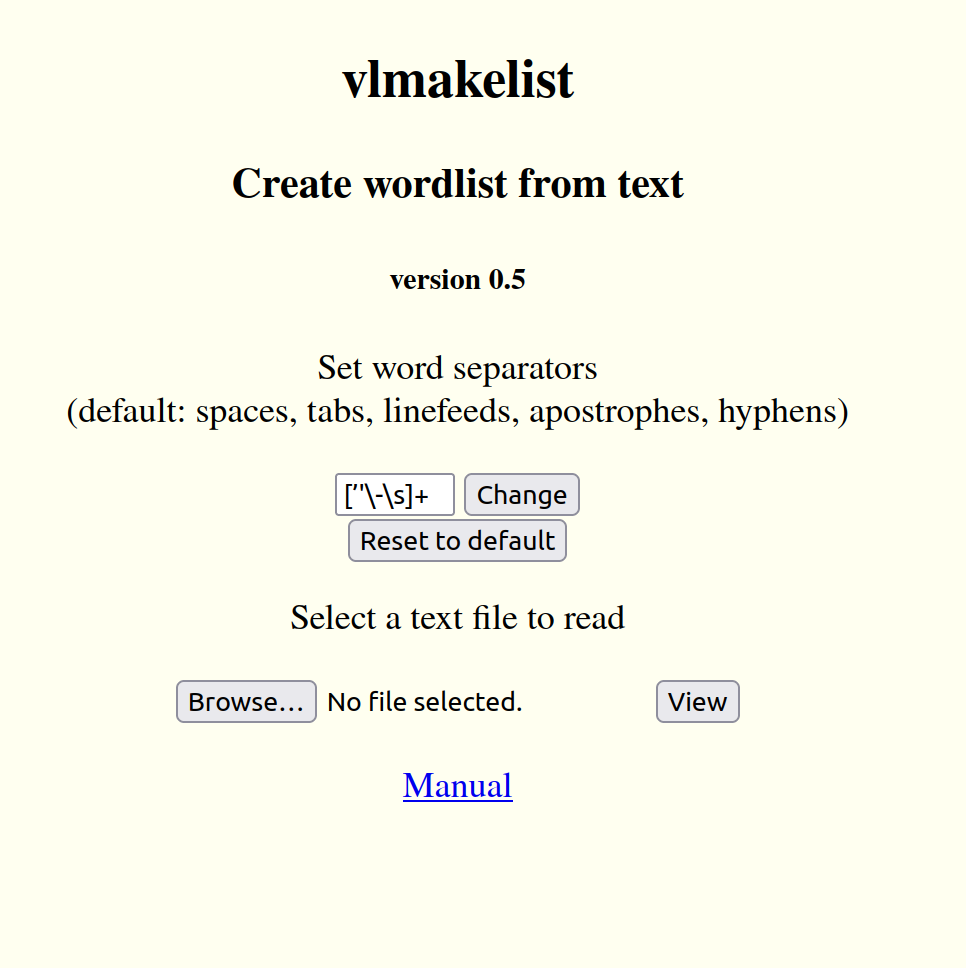
Word separators are defined by means of regular expressions. See the bottom of this manual for more details. In a nutshell, the initial separators are spaces, tabs and linefeeds, captured by the \s symbol, hyphens, captured by the \- symbol, and apostrophes, captured by their forms. All of these are included in square brackets, which mean that they form a class. The trailing + means that one or more members of the class may be found, as in two or more spaces.
To change the separators, edit the text box and click on the Change button. For example, some languages like Mohawk include the apostrophe as a letter character, so that should be removed from the list of separators. At any time, the original list may be restored by clicking on the Reset to default button.
Once the word separators have been defined, a file may be loaded by clicking on the Browse... button. This will open a dialogue on your device which you can use to select the text you wish to explore. Click on your device's dialogue to choose a text then click on the View button to load the file.
Files may also be downloaded from an online page, saved to the user's device, and then loaded into vlmakelist as explained above. As a convenience, the online vlmakelist page includes a Samples directory (at https://vincilingua.ca/Tools/Samples) which includes several text files that may be downloaded in this way, including proust.txt, a long novel in French taken from Project Gutenberg but with the header and footer removed, and, bees.txt, a short text in English about bumblebees taken from a the Canadian BroadCasting Corporation with html codes removed.
Text view
Once a textfile has been loaded, a text view page appears that looks like this (based on proust(3).txt):
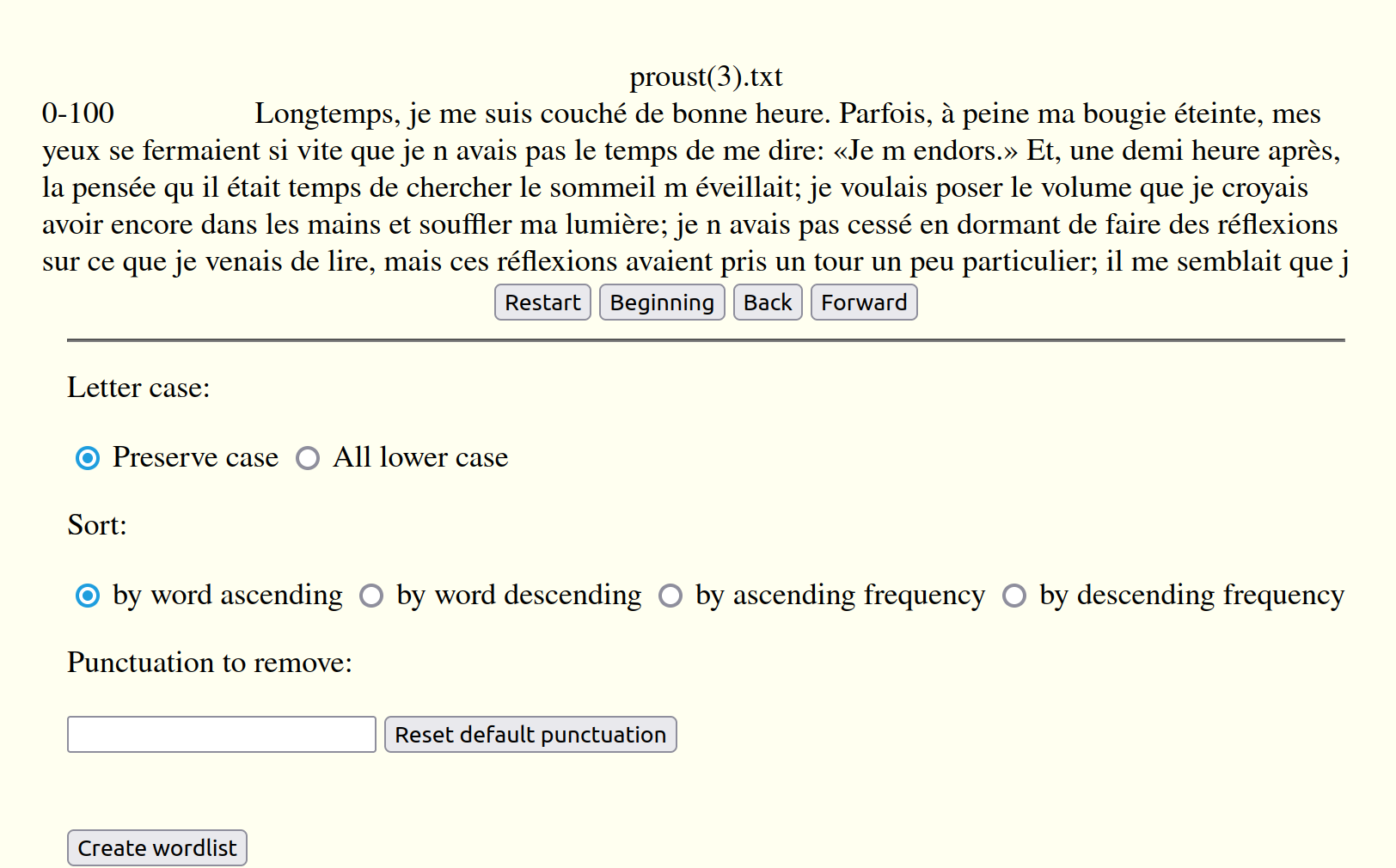
The top of the page shows the filename of the text file that has been loaded. It is followed by the first 100 words of the text, with just before them the beginning and ending word numbers of the block. Below the text are four buttons: a Restart button which, if clicked, returns the user to the initial page, and Beginning, Back and Forward buttons to go the start of the text or to move forwards and backwards from block to block.
Below the text view is a set of specifications used in creating the wordlist.
- The wordlist may either preserve letter case, separating upper and lower case letters in the list, or transform all words to lowercase.
- The list may be sorted in ascending or descending order by words or by frequency
- Finally, it is possible to show or hide punctuation in the wordlist. By default, major punctuation including periods, exclamation marks and question marks, is removed, as well as minor punctuation including commas, colons and semi-colons, and beginning and ending quotation marks. This list may be reduced by removing items, or increased to hide things like brackets () or digits, which may be removed by the sequence 0-9. Any changes made in the box are immediately captured. The default may be reset by clicking on the Reset default punctuation button.
Once all specifications are set, the wordlist is created when the user clicks on the Create wordlist button.
Frequency list view
Let's assume that the user has chosen a wordlist in lowercase and in descending frequency order, based on the Proust text. The top of the result will look like this:
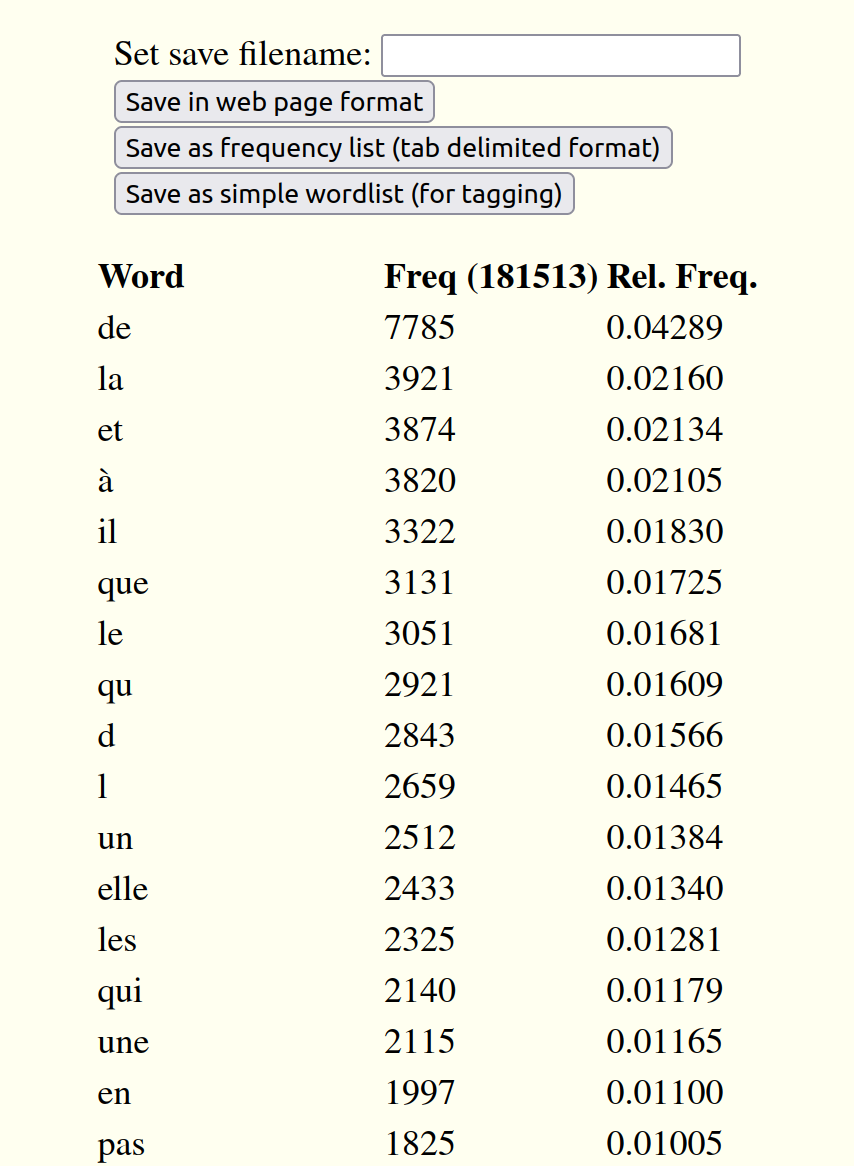
At the top of the list, an input box allows the user to set the filename of the text to be saved. Three new buttons appear below it to allow the list to be saved either as an html version of the list, a frequency list in .csv format suitable for reading into a spreadsheet, or a list of the words in the text suitable for use in subsequent tagging.
When one of these buttons is clicked, the resulting file will be placed in the local Downloads directory on the user's machine. The filename suffix will be .html in the case of the html file, or .csv in the case of the csv or tag files. Each time a list is downloaded, the browser will increment the filename of the newest list. So, for example, a second download of a csv named fred.csv will be stored as fred(2).csv, and so on. This permits the user to keep multiple files for comparison. Any unwanted ones may be removed.
The wordlist itself has three columns, Word for the words themselves, Freq for the number of occurrences of each form (with the total frequency - here, 181513 - in parentheses) and finally Rel. freq. which shows the proportion (out of 1) represented by each form. So we see that the form de represents 4.289% of the total occurrences in the text.
The browser itself provides the means of finding specific forms and of moving up and down the list by means of Home, End and PgUp and PgDn buttons or mouse gestures.
Regular expressions
As noted above, both word delimiter and punctuation boxes permit the use of regular expressions to add or remove characters. A full discussion of regular expressions is beyond the scope of this page, but the following examples will illustrate the essentials.
- as noted earlier, square brackets ([]) enclose sets of alternatives. So, for example, [\-\s] will find both hyphens and word separators like spaces, tabs and linefeeds.
- the plus (+) either after a charactor or after brackets mean that one or more occurrences are permitted.
- some characters have a special meaning and if used as themselves must by preceded by a backslash \. This is why the delimiter box includes \-. By itself, the hyphen or minus sign joins sets of items in a class, as in 0-9 which means any digit.
- conversely, there also exist several metacharacters like \s and \w which stand for patterns and which must be preceded by a backslash. Thus, \s represents any space, tab or linefeed, while \w represents any word character (as a-z, but not punctuation or apostrophe). Without a preceding backslash, s and w represent these two letters of the alphabet.
It is useful to play with these patterns to make them more familiar and to better understand the underlying structures within a wordlist. There exist also various discussions of regular expressions on the web.
Basic architecture
vlmakelist follows the old Unix philosophy of doing one thing (and with luck doing it well). As a result, it has only a small number of basic features. It is written in pure JavaScript so users can see and, if they wish, modify the code. It uses no cookies.
Once downloaded, vlmakelist can be used offline, making it suitable for contexts where internet is not available. It is usable on most devices including desktops, tablets and phones. By doing most of the heavy lifting of analysis on arrays rather than DOM, it allows work on relatively large texts, up to about the size of a novel.
Sharing
Like all the software on the VinciLingua site, vlmakelist is freely available for personal use. Users should feel free to share the software but should not remove mention of the original author.
Users are encouraged to share stories of use, to signal any problems or to suggest any improvements by writing to info@vincilingua.ca. We are particularly interested in cases of use involving teaching and learning of underresourced languages. Note though that this is still a work in progress. Suggestions for improvement are welcome, but we cannot commit to making any requested changes.
Institutions that charge for teaching and learning who wish wish to incorporate vlmakelist into courses or teaching materials should contact info@vincilingua.ca to discuss terms of access.